Unlocking the secrets of your iPhone can feel like trying to find a needle in a haystack, especially when it comes to Developer Mode. It’s that elusive feature that promises to transform your device from a simple gadget into a playground for tech enthusiasts. But where does one even begin this quest?
Understanding Developer Mode on iPhone
Developer Mode on iPhone serves as a specialized tool designed for software developers and tech enthusiasts. This feature allows access to advanced settings, enabling users to test applications and diagnose issues. It’s not visible in the main settings, making the process of locating it unique.
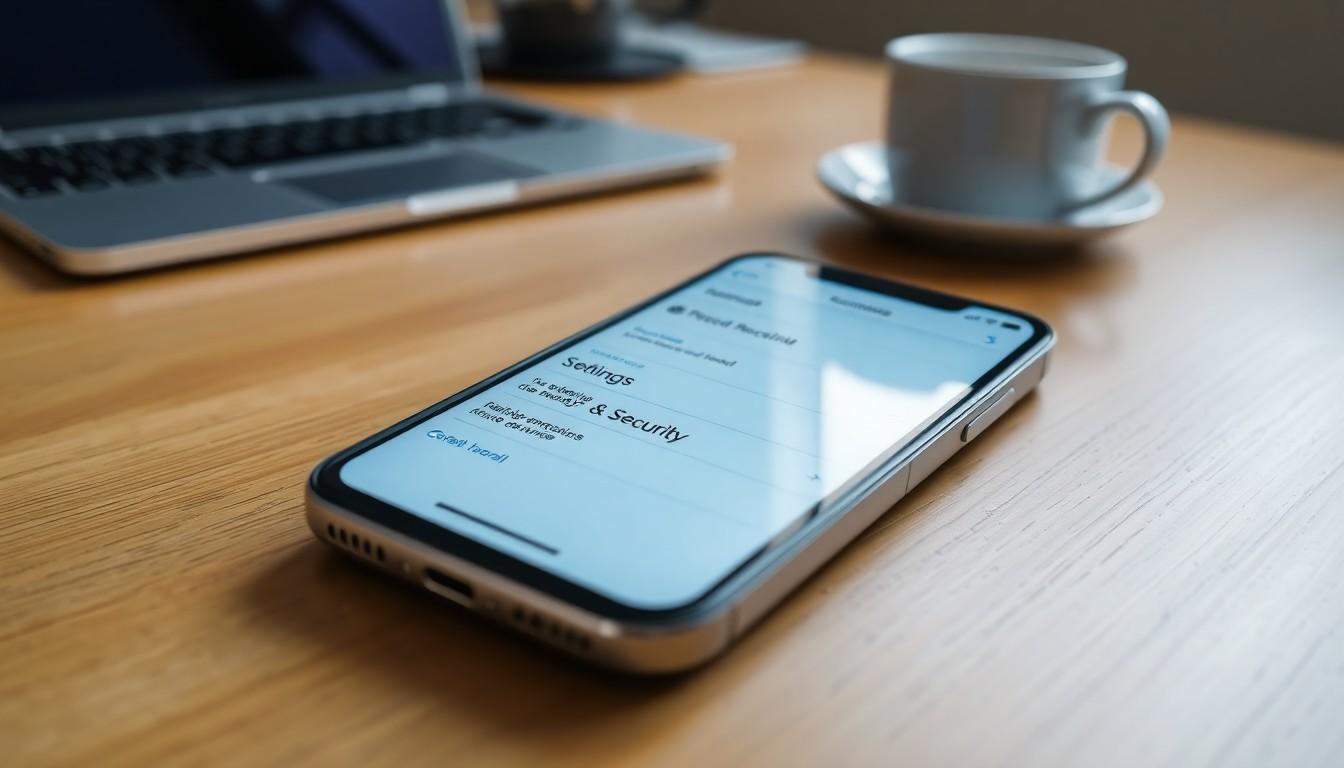
To activate Developer Mode, navigate to the Settings app. Scroll down until reaching the Privacy & Security tab. In this section, users will find the Developer Mode option. Tapping it prompts a toggle switch, which allows users to enable or disable the mode as needed.
Gaining access to Developer Mode unlocks various features. Users can run custom applications directly on their devices. It also facilitates the installation of beta software and tracking performance metrics. These functionalities come in handy for individuals testing new software or developing apps.
Developer Mode offers an array of useful capabilities. Debugging options and logging capabilities help identify and address problems efficiently. Additionally, this mode enhances the overall app development process by simplifying testing.
Not every user requires Developer Mode. It’s primarily intended for developers or those with technical expertise. Careful consideration is necessary before enabling this feature, as unintended changes might affect device performance. Utilizing Developer Mode presents risks for users unfamiliar with its functions.
Overall, Developer Mode on iPhone provides valuable resources for app development and testing. It empowers developers to optimize their applications, ensuring better performance and user experience.
Locating Developer Mode Settings

Finding Developer Mode settings requires specific steps within the iPhone. Users can follow simple instructions to access this hidden feature.
Accessing Settings App
To access the Settings app, users must locate the app icon on their home screen. Tapping on the icon opens the Settings menu, which organizes various device features. Users can scroll through the options to find the necessary settings. It’s crucial to ensure that the device runs on a recent iOS version, as features may vary. The Settings app serves as the primary hub for adjusting device configurations, including safety settings and app permissions.
Navigating to Privacy & Security
Users navigate to the Privacy & Security section directly after accessing the Settings app. Scrolling down reveals the Privacy & Security tab, a critical area for managing sensitive information. Tapping on this section leads to multiple options, including app permissions and transparency settings. Within this area, users should look for the Developer Mode option, facilitating access to advanced settings. Activating Developer Mode provides extensive options for software testing, enhancing the device’s functionality effectively.
Enabling Developer Mode
Activating Developer Mode unlocks various advanced functionalities on the iPhone. Users must follow specific steps to access it.
Step-by-Step Guide
- Open the Settings app from the home screen.
- Scroll down and select Privacy & Security.
- Locate the Developer Mode option.
- Toggle the switch to enable Developer Mode.
- Confirm the activation when prompted.
These steps allow access to crucial features for app development and testing. Users will need to restart their device for changes to take effect.
Common Issues and Solutions
Users may encounter challenges while enabling Developer Mode. If the toggle does not respond, restarting the device might help.
Sometimes, the option may not appear. In such a case, ensure the device runs a supported version of iOS that includes Developer Mode.
If issues persist, consult Apple’s support documents for further assistance. These solutions can contribute to a smoother activation experience.
Benefits of Developer Mode
Developer Mode enhances the iPhone’s capabilities for those involved in software development and testing. Access to advanced settings allows users to run custom applications, which can greatly simplify the testing process for developers. Tracking performance metrics becomes straightforward, enabling better optimization of apps.
Debugging options also become available, making it easier to identify and resolve issues within applications. Users can install beta software for early access to upcoming features, which provides crucial insights into future app behavior. Comprehensive logging capabilities further aid in troubleshooting problems.
Enhanced app performance can stem from the insights gained through Developer Mode. Developers benefit from a controlled environment to test features without affecting regular usage on their devices. This adds an additional layer of convenience when experimenting with new software.
For those eager to optimize user experience, the benefits of Developer Mode cannot be overlooked. Performance analytics provide actionable data, leading to improved app functionality. Utility increases significantly, especially for software developers.
Finally, accessing Developer Mode encourages a deeper understanding of iOS architecture. Familiarity with system behavior helps developers write more efficient code. Appreciation for the nuances of app development grows with hands-on experience available through this mode.
Conclusion
Unlocking Developer Mode on an iPhone opens a world of possibilities for developers and tech enthusiasts. By following the steps outlined in the article users can easily access advanced settings that enhance their app development and testing experience. This mode not only facilitates running custom applications but also provides essential tools for performance tracking and debugging.
While it’s important to tread carefully when enabling this feature the benefits it offers in terms of app optimization and deeper insights into iOS functionality are invaluable. Embracing Developer Mode can lead to improved app performance and a better understanding of the development process.